Local database setup
Prerequisites
- Docker or Podman installed (guide uses Podman, but Docker works the same)
- Recommended: 4+ CPU cores and 8GB RAM for smooth development
Prepare environment
Step 1. Create .env file
Create .env with passwords for Oracle Database:
ini
ADMIN_PASSWORD="MySecurePass123!"
WALLET_PASSWORD="MySecurePass123!"
WARNING
Always make sure that .env are gitignored
Step 2. Create Dockerfile
Create ./Dockerfile (with capital D):
FROM container-registry.oracle.com/database/adb-free:latestThis pulls from Oracle Container Registry. As of mid 2025:
:latest= Oracle 19c:latest-23ai= Oracle 23ai with built-in AI capabilities
NOTE
As per end of 2025 there are still some SQLcl and 23ai compatibility issues, 19c is a safer choice.
Step 3. Create compose.yaml
Create ./compose.yaml:
yaml
name: odbvue
services:
  odbvue-db:
    build:
      context: .
    container_name: ${DB_CONTAINER_NAME}
    ports:
      - '1521:1521'
      - '1522:1522'
      - '8443:8443'
      - '27017:27017'
    environment:
      WORKLOAD_TYPE: ATP
      ADMIN_PASSWORD: ${DB_ADMIN_PASSWORD}
      WALLET_PASSWORD: ${DB_WALLET_PASSWORD}
    cap_add:
      - SYS_ADMIN
    devices:
      - '/dev/fuse:/dev/fuse'
NOTE
If running several databases locally, adjust different ports or use only one at the time
Launch database
Step 1. Run command to build and create container
bash
podman compose up -d --buildStep 2. Wait until installation finishes. It can take a while.
Progress can be monitored from command line.
bash
podman logs --tail 50 myapp-oracle-db-devIf all is good, the Oracle Rest Data Services landing page will be up and running on https://localhost:8443/ords
Connect to database
From VS Code using Oracle SQL Developer Extension for VSCode
Step 1. Get the wallet file
bash
podman cp myapp-oracle-db-dev:/u01/app/oracle/wallets/tls_wallet ./tls_walletAnd zip all the contents into ./wallet.zip
WARNING
Make sure that *.zip are gitignored
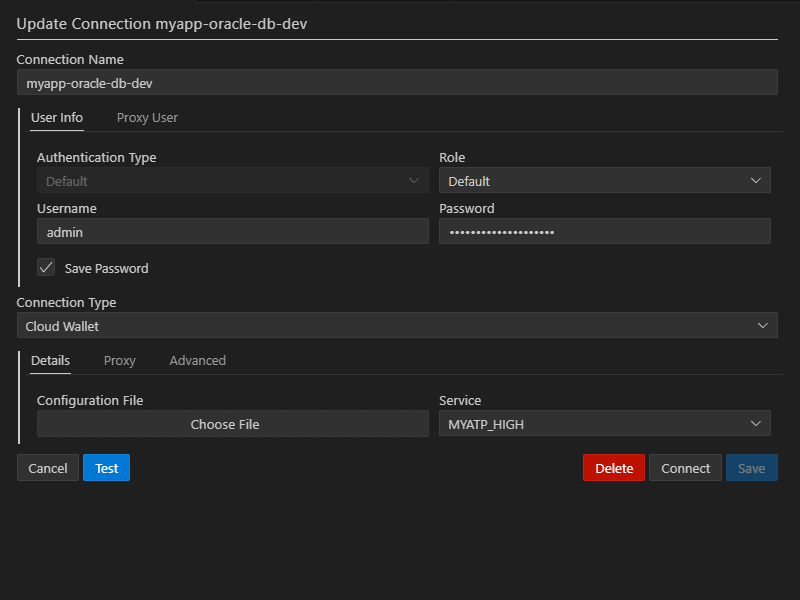
Step 2. Set up connection with Connection type as Cloud Wallet and choose created zip file.